Qloud - Template customization tutorial samples
Each section in every page has a well documented tutorial added in the main file. This template is very easy to customize as contents are update-able from side panel, documentation completes the whole process.

Start: Customization Tutorial
You can customize the template within three steps:
Update contents: Just select the section layer - which is a framer component, you will see input fields to change each content. Internal layers are locked & safe from accidental changes.

Change width & height or element position: To adjust size, position, or other layout settings, double-click any section component to edit it directly.

Change color and font styles: Easily update color and font styles across your site from the Assets tab in the left panel. No update needed if you're happy with the current theme.
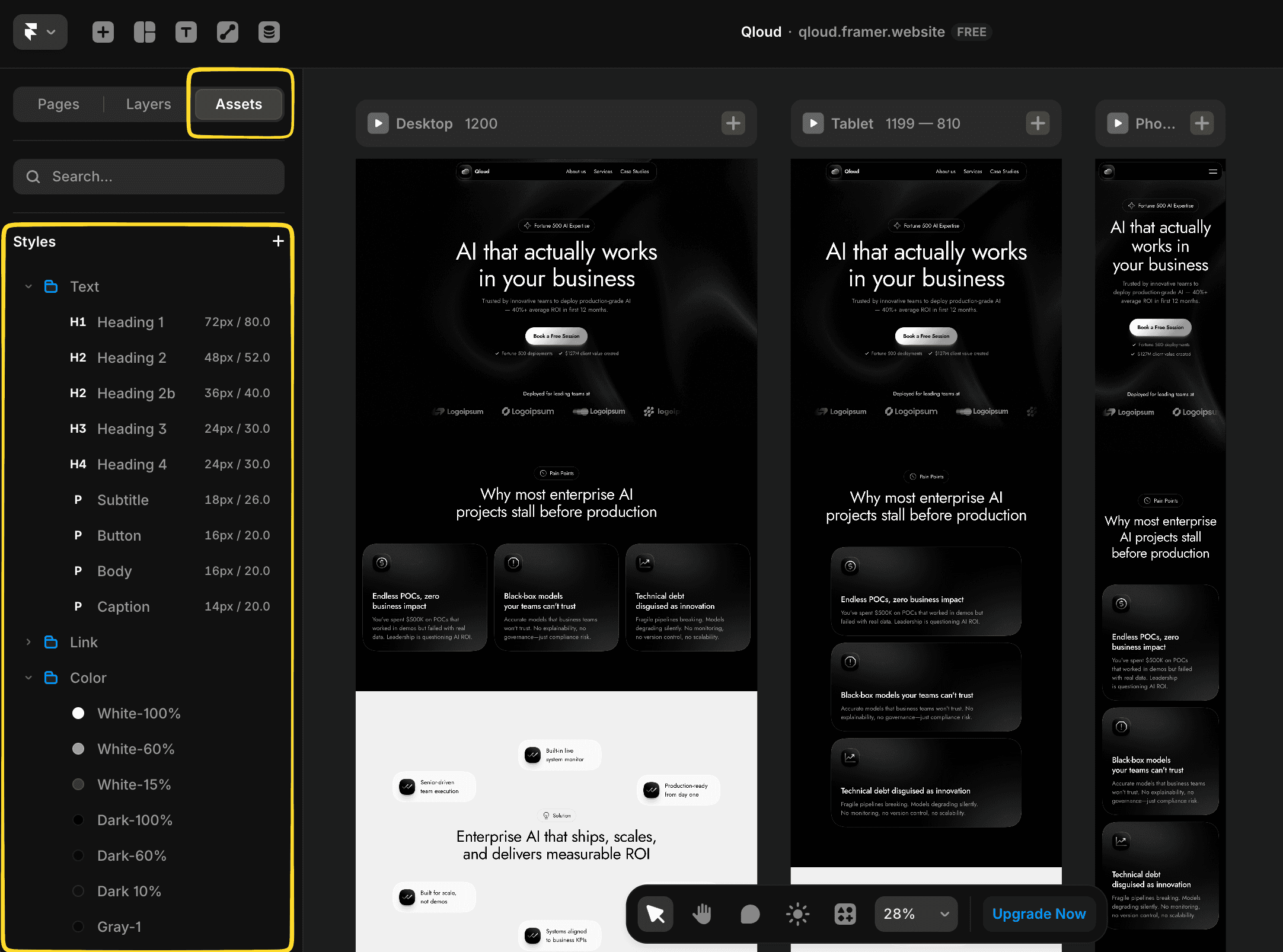
Homepage
Top Navigation Bar [Content]
Update contents:
Double click the top navigation component to open the main component canvas.

Main component canvas ⬇︎
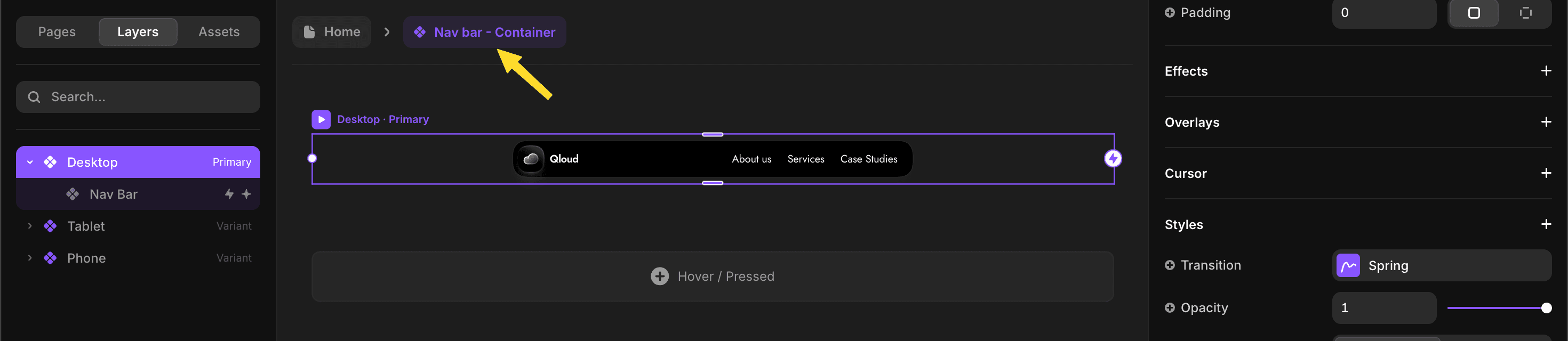
Select 'Nav Bar' layer, Content fields will appear in the right panel which is separated by segments like logo, links & button.

Select 'Nav Bar' layer, Content fields will appear in the right panel which is separated by segments like logo, links & button. Update label and link easily in the right panel for links and button. Logo updating process is given below.
Logo has two variations - Icon & Image,
From the 'Icon' variation, you can select any icon from the given library(Tap on the logo mark filed). Update your brand name from 'Logo type' field.
From the 'Image' variation, just upload your logo in PNG or SVG(best) in white color to maintain the theme aesthetics. No need to update 'Logo mark' & 'Logo type' fields if you are using image variant.

Hero Section [Content]
Update contents:
Select the section layer in homepage. Content fields will appear in the right panel (Scroll a bit). Top element starts first. Like the badge in the design - starts with the icon. Skip 'Variant' & 'Trigger' option at the top.

Brand Logos: You can upload PNG or SVG, but make sure it is white in color. Just tap on the logo in the right panel and upload your lmage.

1
2
Background: You can use 'Shader' or 'Static' Image for the background. Change it from the dropdown. Seed number changes the 'Shader' pattern.

Pain Points [Content]
Update contents:
Select the section layer in homepage. Content fields will appear in the right panel (Scroll a bit). Top element starts first. Like the badge in the design - starts with the icon. Skip 'Variant' & 'Trigger' option at the top.

Cards: Each card content option is separated. Update icon, title & description easily.

Services Section & Service Details Page [Content] [CMS]
Update Section contents:
Select the section layer in homepage. Content fields will appear in the right panel (Scroll a bit). Top element starts first. Like the badge in the design - starts with the icon. Skip 'Variant' & 'Trigger' option at the top. As this is a CMS section, service card contents are editable from the CMS panel.

Thumbnail Variants: By default you can re-present your services with 2 change-able [From CMS] icons in the service card thumbnail. But you can also add images [From CMS]. Change the variant from the dropdown in the right panel. Only add contents for the variant you want to set.

Update CMS contents:
Tap on the CMS icon at top left of the screen.

By default, 'Service' collection is selected. All services are shown in the right side in table view. You can scroll horizontally to see the items in each service but some items are missing here. As we have service details page, we have to add contents for both cards and details page from here. Explore the details page before adding contents to be full clear what items we need to add & prepare the contents.

Hover over any service title, a toggle button will appear. Tap it to open the right side panel. Green box's in the image are different segments. Each segment title are gray in color - no need to edit them. Update contents below them.

As said before, either add image or icon in thumbnails for service cards in homepage. To update icons, just tap on them and search. Based on what option you choose, make sure to set the variant in the section in homepage.

Rest of the contents are for 'Service details' page. Divided in 3 sections. Add contents as per your need. Each section has a title and rich text content field, I added an extra image filed in section 2. Please explore the designs and CMS fields to be more clear. More tutorial is added in 'Service Details' page tutorial segment below 'About Us' segment.


About Us
Intro - Section [Content]
Update contents:
Select the section layer in about page. Content fields will appear in the right panel (Scroll a bit). Top element starts first. Like the badge in the design - starts with the icon. Skip 'Variant' & 'Trigger' option at the top.
Update badge, title, subtitle and image directly from the right panel.

Our Story [Content]
Update contents:
Select the section layer in about page. Content fields will appear in the right panel (Scroll a bit). Top element starts first.
This section has 2 paragraphs, top one is named 'Paragraph 1' in right panel, and bottom one is 'paragraph 2'. Just update the fields.

FAQ [Content]
Update contents:
Select the section layer in about page. Content fields will appear in the right panel (Scroll a bit). Top element starts first, like the badge above the title here.
Update image, title, subtitle, button label & link.
Currently button is linked to homepage, please update it according to your need.

update the title segment & the QnA segments from the right panel as shown in the image, answers are hidden in the design, preview it and start interacting with the 'plus' icon to see the answers after updating all the contents.

By default, total 5 Que is visible in the design. But I added option to add 2 more. In the right panel just enable 'Visible Q6' and 'Visible Q7' and update the que and ans. You can enable one or both as per your need.

About page is done, as you updated the footer section from 'layout template' , the section is updated in every page. No need to update again.
Above are just samples, full picture looks like the image below
